
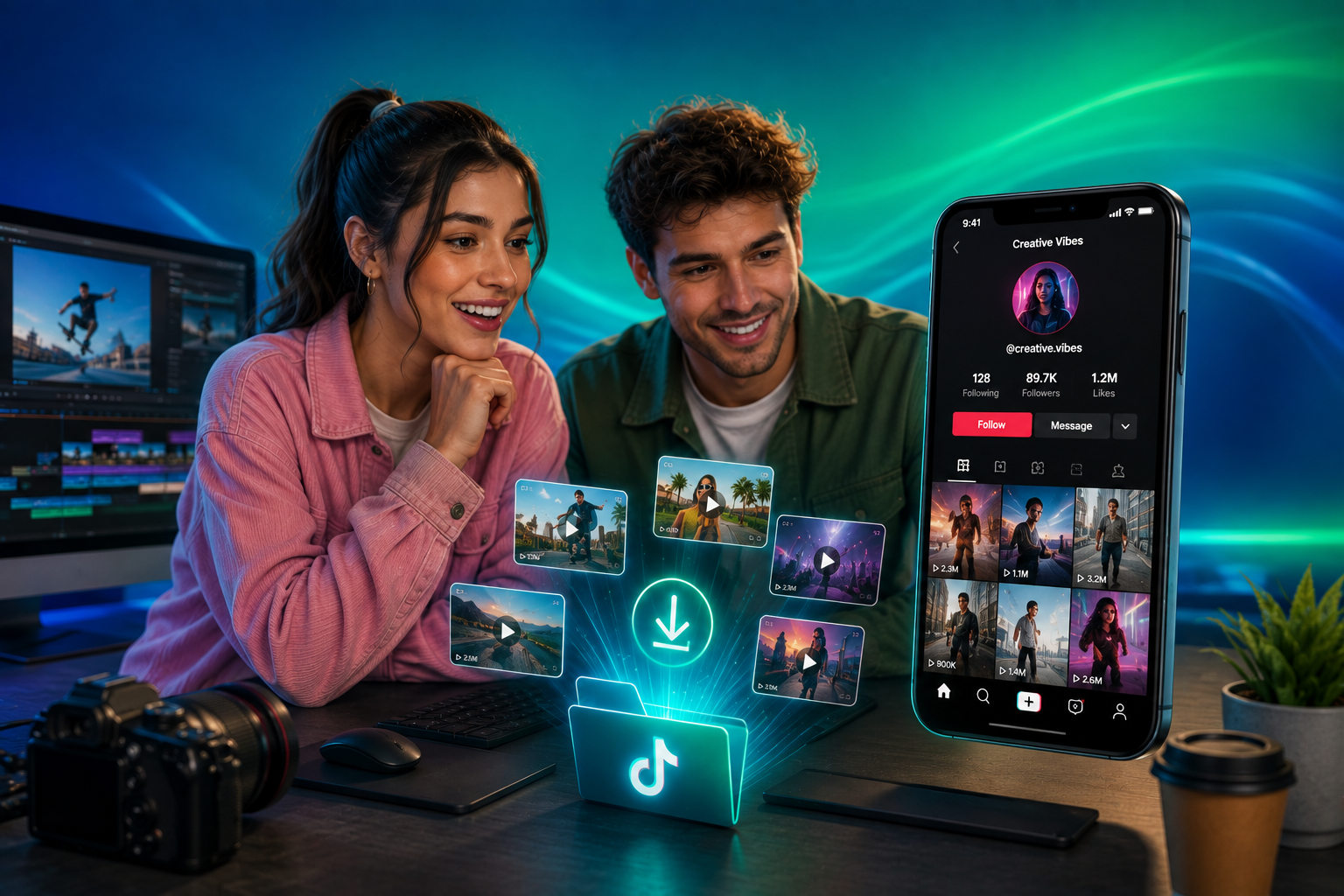
How Content Editors Download Video TikTok Clips for HD B-Roll Edits
A practical workflow for content editors who need clean, watermark-free TikTok footage for B-roll — covering quality pitfalls, a fast download process, and the rights considerations that come with reusing social footage in professional edits.
A deadline's closing in, the timeline needs a few seconds of texture between two talking-head shots, and someone on the team says "there was a great TikTok clip for this." Fifteen minutes later, half the edit team is trying to figure out how to download video TikTok content without losing quality, without installing something sketchy, and without derailing the rest of the session. It's a small problem on paper. In practice, it eats time that should've gone into the actual edit.
Here's how editors who deal with this regularly actually handle it — and why some methods hold up under real deadline pressure while others quietly work against you.
Why B-Roll From TikTok Ends Up in Professional Edits at All
TikTok's turned into an unlikely but genuinely useful source of raw footage — quick reactions, candid street shots, texture that's hard to stage on a real shoot. For editors working on documentary segments, social recaps, news packages, or brand content that needs to feel current, a well-chosen clip can do more for pacing than another stock library search ever will.
The catch is that TikTok's own interface isn't built for anyone trying to pull footage into a professional workflow. The in-app save option compresses aggressively and stamps a watermark across the frame — fine for reposting, useless for an edit that needs a clean plate to cut against.
What Actually Happens When You Download Video TikTok Content the Wrong Way
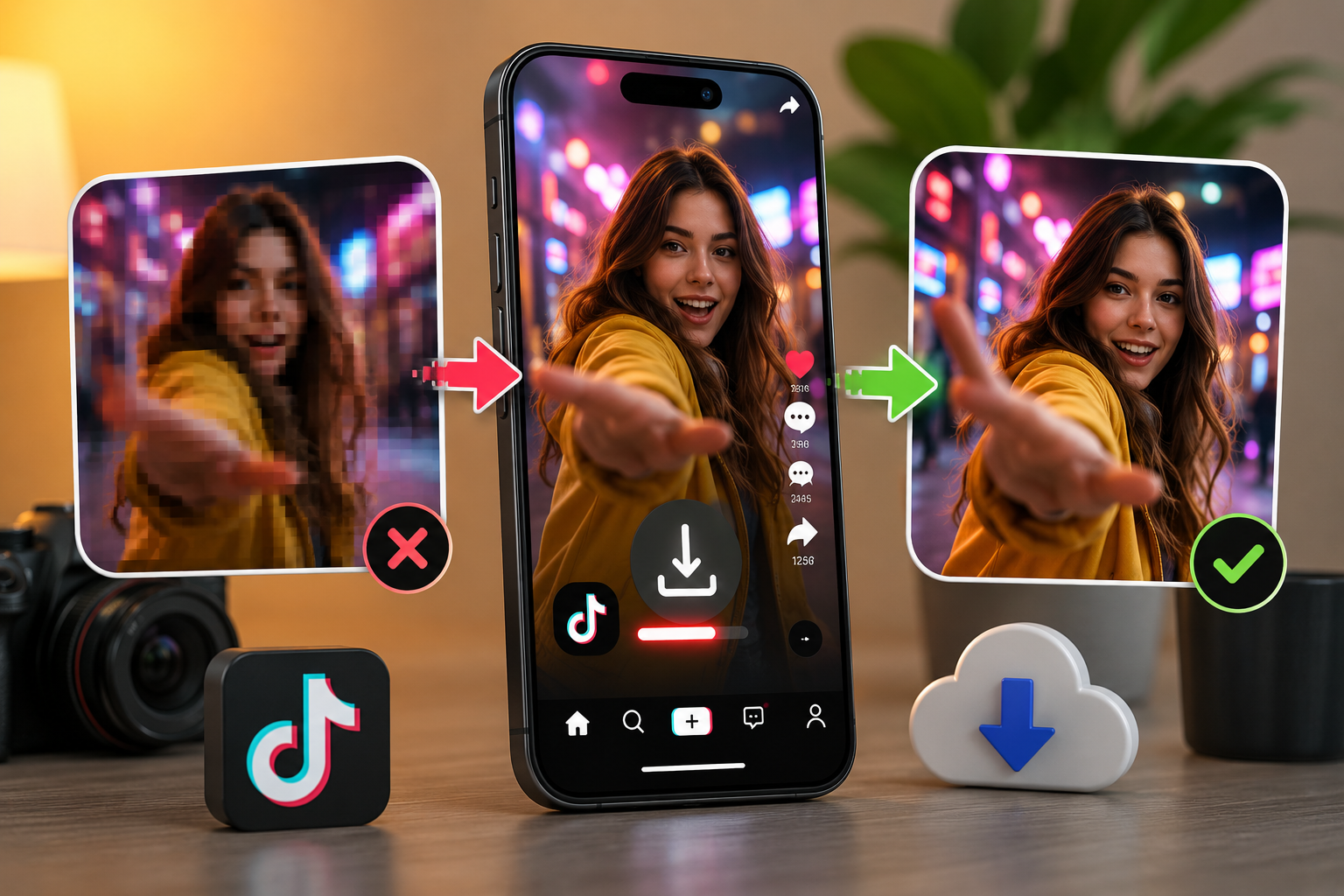
Screen recording is the instinct a lot of editors reach for first, mostly because it feels like the obvious workaround. It isn't a good one. A screen recording captures your device's display resolution, not the source file, and stacks a second layer of compression on top of whatever TikTok already applied. Drop that into a timeline next to actual HD footage and the difference is immediate — soft edges, visible artifacting, motion that doesn't hold up under a color grade the way a clean source clip would.
The in-app save button has the same core issue, plus the watermark problem on top. Neither method gets an editor what they actually need: a clean, high-resolution file that behaves like any other piece of footage once it's in the timeline.
Getting a Clean Source File Instead
The fix is retrieving the actual video file TikTok has stored, rather than a recording of whatever's rendering on a screen. A proper downloader tool built for this does exactly that — it requests the source file directly using the public video link, before any watermark gets stamped onto it during TikTok's own export process.
The practical difference shows up the moment the file lands in an editing timeline. No compression stacked on compression. No watermark eating into the corner of the frame. No mismatched resolution sitting awkwardly next to footage shot on an actual camera.
A Workflow That Actually Fits an Editing Session
For editors working under time pressure, the process needs to be fast enough that it doesn't interrupt momentum:
- Grab the share link directly from the TikTok post — the Share icon inside the app or on desktop.
- Paste it into a TikTok video downloader, skipping anything that wants an app install mid-session.
- Preview the clip to confirm it's the right take before it's added to the project bin.
- Download at the highest quality option available, since that's the ceiling for what the timeline will have to work with.
- Import directly into the NLE — the file behaves like any standard MP4, no extra conversion step required.
That whole sequence takes under a minute once it's familiar, which matters when a clip's needed mid-cut rather than pre-planned.
Quality Ceiling — What to Actually Expect
A downloaded TikTok clip will only ever be as good as what the original creator uploaded. A tool retrieving the source file gets you the best version that exists, but it can't manufacture detail beyond what TikTok has stored. For B-roll cut in wide or used briefly, that ceiling is rarely an issue. For a hero shot held on screen for several seconds in a 4K deliverable, it's worth checking the source resolution before committing to it in the edit — a clip that looks fine at thumbnail size can still read as soft once it's filling a full frame.
Rights and Usage — The Part Editors Can't Skip
Downloading a clip cleanly doesn't settle the separate question of whether it's actually clear to use. A TikTok video being publicly viewable isn't the same as it being licensed for reuse in a commercial edit, and that distinction matters more once footage moves from a rough cut into something that's actually going to publish.
For editors working on anything beyond personal or clearly permitted use, it's worth getting familiar with how fair use and licensing actually apply to short-form video — the U.S. Copyright Office's overview of fair use is a solid, non-commercial starting point for understanding where the lines generally sit, though specific situations often still warrant a conversation with whoever handles rights clearance on a project. Crediting the original creator and, where the use isn't clearly transformative or covered by an existing agreement, reaching out for permission is the safer default — especially on anything client-facing.
Building This Into a Repeatable Workflow
Editors who deal with social-sourced footage regularly tend to build a couple of habits around it rather than solving the problem fresh every time:
- Download and archive clips as soon as they're flagged, rather than trusting that a TikTok link will still resolve to the same content weeks later — posts get deleted or made private without warning.
- Keep a lightweight rights-tracking note alongside the footage — creator handle, date pulled, intended use — so a producer or legal reviewer isn't reconstructing that information later under deadline pressure.
- Standardize on one reliable downloader across the team, rather than everyone individually hunting for a tool mid-project. Consistency here saves more time than it seems like it would.
Frequently Asked Questions
Is downloaded TikTok footage actually usable in a professional edit?
Technically, yes — a properly downloaded clip is a standard MP4 that behaves like any other footage once imported. Whether it's clear to use depends on rights and context, which is a separate consideration from the technical quality.
Why does screen-recorded TikTok footage look worse in a timeline?
Because it's capturing your display, not the source file — adding a second layer of compression on top of whatever TikTok already applied, plus locking the resolution to whatever your screen was rendering at.
Can editors get 4K footage from TikTok downloads?
Only if the original creator uploaded at that resolution. A downloader retrieves the best version TikTok has stored, but it can't exceed the quality of the original upload.
Does TikTok notify creators when their video is downloaded?
No. TikTok doesn't notify users when a public video is saved through an outside tool, though that has no bearing on whether reuse of the footage is actually permitted.
What's the fastest way to pull a TikTok clip mid-edit without breaking flow?
A browser-based downloader that needs nothing more than a pasted link — no app install, no account, no extra software competing for the editing machine's resources.
The Practical Takeaway
Editors who work with TikTok footage regularly aren't screen-recording their way through it — they're pulling the source file directly, checking it against the resolution the final deliverable actually needs, and keeping rights considerations part of the same workflow rather than an afterthought. Get that process down once, and TikTok stops being a scramble every time it shows up in a project and starts being just another footage source among the rest.
Verwandte Beiträge
Bereit zum Download?
Fügen Sie einen öffentlichen TikTok-Link ein und speichern Sie ein sauberes MP4, MP3, Story oder Diashow.
Video-Downloader öffnen