How to Download TikTok Stories Before They Expire
TikTok stories vanish after 24 hours. Here’s how to save public story videos and photos while they’re still live — straight from your browser.
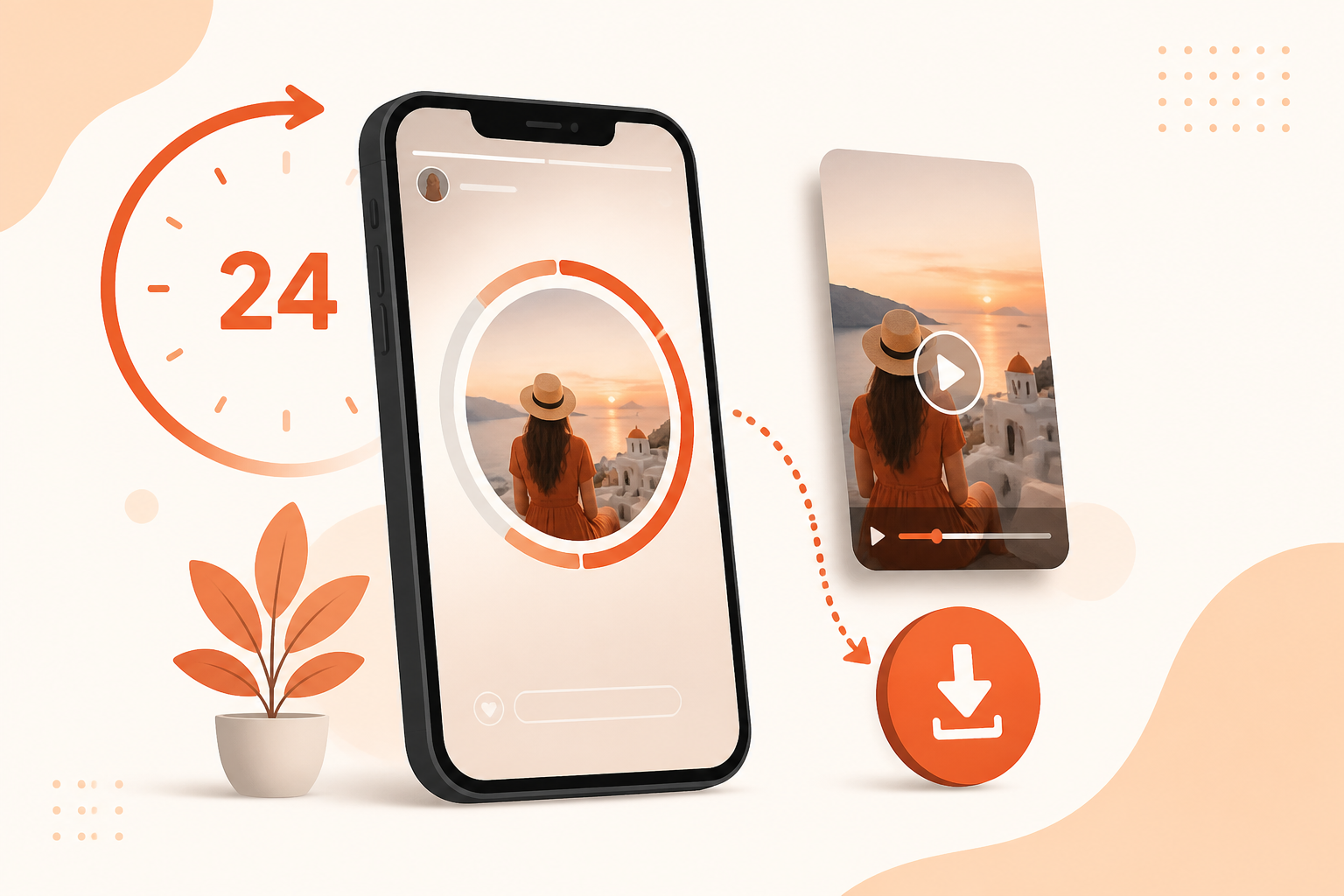
TikTok Stories work like Stories on other platforms: they sit in a ring around a profile photo, play full-screen, and automatically disappear roughly 24 hours after posting. There is no official “save story” button for someone else’s content, and once the timer runs out the media is gone from public view. If you want a clip for personal reference, inspiration, or offline viewing, you need to grab it while the story is still active.
{{siteName}} can fetch public TikTok stories when you paste a valid story link. This guide covers how stories work, how to copy the right URL, and what to do when a download fails.
Understanding TikTok story expiry
- 24-hour window — most stories expire one day after publishing. After that, the link stops resolving and download tools cannot recover the file.
- Public stories only — you can save stories from public accounts that anyone can view. Private accounts, close-friends lists, and followers-only stories are not accessible without authorization.
- Video and photo stories — TikTok supports both formats. {{siteName}} returns MP4 for video stories and image files for photo stories when available.
- No recovery after expiry — unlike regular feed posts, expired stories are not archived on the public web. Save them before the countdown ends.
What you’ll need
- A story that is still live (check the profile — if the story ring is visible, you are in time)
- The story’s share link or a profile URL {{siteName}} accepts
- A browser on any device — no app install required
Step 1 — Open the story and copy its link
- In TikTok, tap the creator’s profile picture with the story ring.
- Watch the story you want to save (video or photo).
- Tap Share or the ⋯ menu on the story.
- Choose Copy link.
Some builds let you share a story link directly; others require copying from the profile or using TikTok’s “Share story” option. If you only have the profile URL, paste that into {{siteName}} — the story downloader will attempt to resolve the active public story associated with the account.
Links often look like tiktok.com/@username with story parameters, or a short vm.tiktok.com/… redirect. Copy the full string TikTok gives you.
Step 2 — Download with {{siteName}}
- Go to the TikTok Story downloader.
- Paste the story or profile link into the box.
- Tap Download and wait for the preview.
- Choose the format shown — MP4 for video stories or the image option for photo stories.
- Save the file to your device.
The tool reads publicly available story metadata the same way your browser loads the story player. It does not bypass privacy settings or log into TikTok on your behalf.
Step 3 — Save to your phone or computer
iPhone
After Safari downloads the file, open it from the Downloads manager → Share → Save Video (for MP4) or save the image to Photos. See our iPhone guide if Save Video is greyed out.
Android
Tap the completed download notification or find the file under Files → Downloads. Gallery apps usually pick up new MP4s within seconds.
Desktop
Choose a folder when prompted, or check your browser’s default Downloads directory.
Tips to save stories reliably
- Act early — do not wait until hour 23. Links can break before the visible ring disappears if the creator deletes the story manually.
- Confirm the account is public — open the profile in a logged-out browser tab. If TikTok prompts you to follow or log in, the story is not publicly downloadable.
- Copy a fresh link each time — story URLs expire quickly, similar to regular TikTok media. If a download fails, re-open the story in TikTok and copy again.
- Save multiple slides separately — if a creator posts several story frames, you may need to download each while viewing it, depending on what link TikTok exposes.
- Use Wi-Fi for large video stories — HD story clips can be tens of megabytes; Wi-Fi avoids failed mobile downloads.
Troubleshooting
Story not found
The story probably expired, was deleted, or belongs to a private account. Verify the story ring is still visible on the profile and that you can watch it without logging in.
Wrong content downloaded
Profile-level links sometimes resolve to the latest active story, not an older frame. Open the specific story you want, share from inside the viewer, and paste that link.
Download link expired mid-save
TikTok CDN URLs are time-limited. Return to {{siteName}}, paste the TikTok link again, and download immediately — do not leave the preview tab open for long.
Photo story saves as a screenshot-quality file
{{siteName}} serves the source image TikTok hosts when possible. If quality looks low, the creator may have uploaded a compressed image originally — that is a platform limitation, not a downloader bug.
Stories vs regular TikTok posts
Feed videos and photo posts stay on a profile until the creator removes them. Stories are ephemeral by design. If the same content also appears as a normal post, downloading the feed version from the main video downloader gives you a permanent link that will not expire in 24 hours. When content is story-only, save it while you can.
Public stories and responsible use
Only download stories from accounts you are allowed to view publicly. Saving someone’s story does not notify them, but it also does not grant permission to repost, monetize, or impersonate. Stories often contain personal moments, location tags, or temporary announcements — treat saved files as private unless the creator clearly intended wide distribution. Respect copyright on music and visuals, and delete files you no longer need.
Save a TikTok story now
Paste a public story link before the 24-hour window closes — free, no login.
Open story downloader